





Automated Scans
Automatically scan your PC for outdated, missing, or corrupted software and drivers, and scan software downloads for malware and viruses.
Improve PC performance with automated driver and software updates
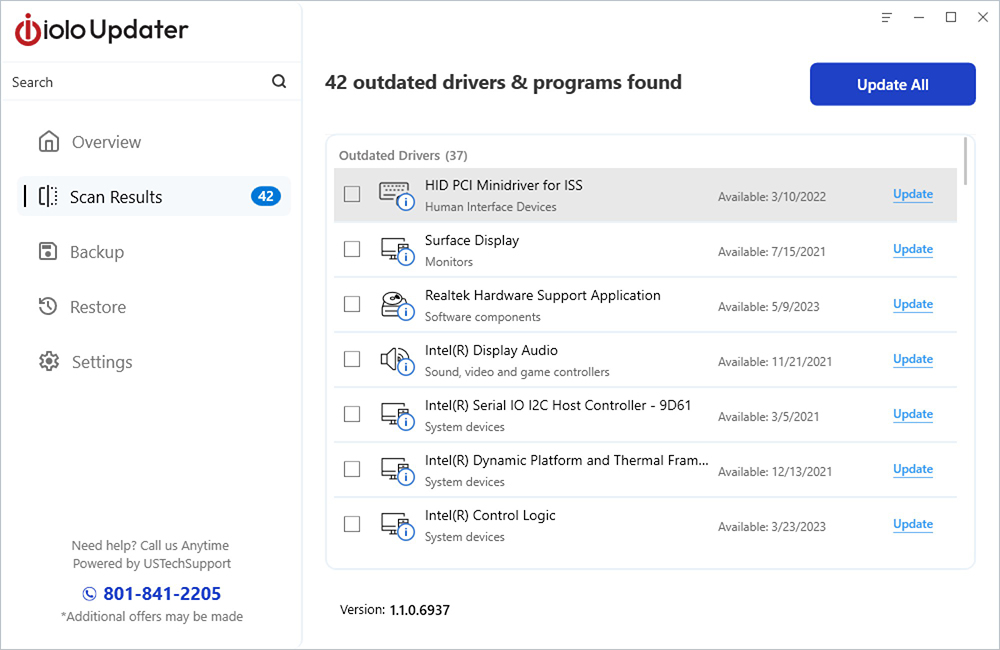
iolo Updater is your one-click app for updating all your drivers and software. Improve performance and stability, avoid time-consuming manual downloads, get the latest security patches and versions, and ensure compatibility.
Automatically scan your PC for outdated, missing, or corrupted software and drivers, and scan software downloads for malware and viruses.
Review a comprehensive list of drivers and software that needs updating, and get the newest version with a single click.
See recommended updates from a massive database of software applications and drivers compared to your current versions.
Automatically update software and drivers when it’s convenient, and schedule regular scans to keep software and drivers up to date.
Create a backup version of your drivers before installing the latest, so you can restore earlier versions as needed.
Get software and driver update recommendations, then download just the ones you prefer and exclude certain drivers from updates.
Stay updated with the most efficient, stable, and secure versions of your software and drivers.
Keep your hardware running at its best and maintain a faster, more efficient operating system with regular performance improvements and bug fixes.
Automate the time-consuming process of manually checking for updates. Automatically scan and install the latest versions, or download and install them when it’s convenient for you.
Prevent corruption, random lags, or system crashes by regularly updating software and drivers and maintaining compatibility with the latest operating system.
Reduce the risk of breaches and protect your device from vulnerabilities when you update your software and drivers with the latest security patches.
For a PC to work effectively, its hardware accessories — such as printers, external speakers, keyboards, and video and sound cards — must be able to communicate with the computer’s operating system. This is the job of device drivers. Every computer accessory has its own device driver which must be installed before the accessory can be used. Likewise, software programs are essentially instructions that allow your PC to perform important tasks, such as word processing, gaming, video editing, and browsing the internet.
Updating your device drivers and software is critical. Failing to keep the device drivers updated may result in the accessory not functioning correctly. Failing to update your software can lead to security risks, compatibility issues, performance problems, and missed features.
iolo Updater makes it easy to ensure that your software programs and device drivers are up-to-date. Once installed, iolo Updater will scan your computer, looking for outdated drivers and software by comparing what’s on your PC against a massive database of the latest programs and drivers. iolo Updater will list the drivers and software that need updating, allow you to select which ones to update, and even let you backup, restore, or ignore programs and drivers as needed.
To register the product, please follow the steps below: Launch iolo Updater. Click the “Activate Now” button. In the window that opens, copy and paste your license code in the suggested field. Click “Activate Now”. The program will be registered. Now you can use the full version and efficiently update the latest software and drivers on your PC.
Launch iolo Updater. Click the “Restore” tab. Check the device driver you wish to restore and click “Restore”. This process will roll back to the previous driver version.
If you’re using the free version of the product, you’ll need to individually select each outdated software program or driver that you want to update and update it manually. To activate the “Update All” button, please upgrade to the paid version of iolo Updater.
To add incompatible software or drivers to your Ignore List: From the scan results list, right-click the driver or software program you want to ignore and select “Add to Ignore”. To view your Ignore List, click Settings, select “Ignore List”, and choose the “Ignore Programs” tab or the “Ignore Drivers” tab. On subsequent scans, the software and drivers added to the exclusion list will not be displayed in the scan results and will not be updated.
iolo Updater will automatically default to storing downloads and backups in the AppData\Roaming\iolo\iolo Updater\Download and \Backup folders. To change the location: Open iolo Updater, choose “Settings”, select the “Drivers” tab, click “Browse” and navigate to the new folder where you’d like downloads and backups to be stored. You can also disable the default Drivers setting that automatically creates a restore point before installing a driver. The Default button resets both the folders and driver setting to the original configuration.
Please add adu.exe to the allow list/exclusion list of your firewall or antivirus program and then try to update your software and drivers again; it should work.
To make a backup of your existing drivers: Launch iolo Updater. Click the “Backup” tab. Click “Select All” for a full backup, or individually select the driver(s) you want to back up. If you choose a full backup, the backup will begin; if you choose specific drivers, check mark these for backup from the resulting list.
To disable iolo Updater from launching at startup: Launch iolo Updater. Click the Settings > General tab and uncheck the setting, “Launch on System Startup”. This will disable the program from launching at Windows startup.
Windows® 11, 10, 8.1, 8, 7
20+ years of PC performance innovation
Free product support
30 day money-back guarantee
Offer Details: Certain product features require ongoing updates from iolo. One year is included in the initial purchase. After this initial period expires, you must renew to continue to receive access to such features. You may enable automatic renewal during checkout and update your automatic renewal preferences by logging into your iolo Account. See Sales Policy for more details.


