

How to install ByePass+ for Chrome, Edge, Firefox
This page provides instructions for how to install the ByePass+ password manager browser extension on Google Chrome, Microsoft Edge, and Mozilla Firefox browsers. Use the appropriate links below to complete all three steps.
STEP 1 | Locate License Key
STEP 2 | Install browser extension
- Install ByePass+ on GOOGLE CHROME
- Install ByePass+ on MICROSOFT EDGE
- Install ByePass+ on MOZILLA FIREFOX
STEP 3 | Access ByePass+ Extension
Are you migrating your ByePass account to ByePass+? Keep going with the migration instructions, here.
STEP 1 | Locate License Key [SYSTEM MECHANIC ULTIMATE DEFENSE]
Prerequisite: To use the ByePass+ browser extension, you need a System Mechanic Ultimate Defense (OR ByePass+ software) subscription and an activated license key.
- Open the System Mechanic Ultimate Defense application on your PC.
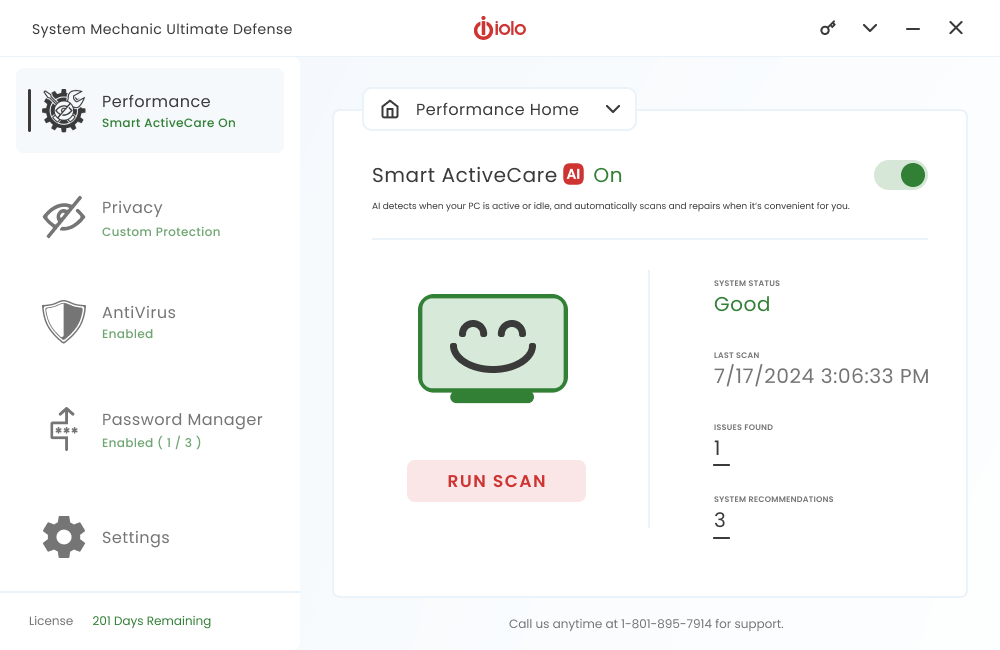
- Click the key icon in the upper right corner. The Product Information window displays your subscription status and license key.
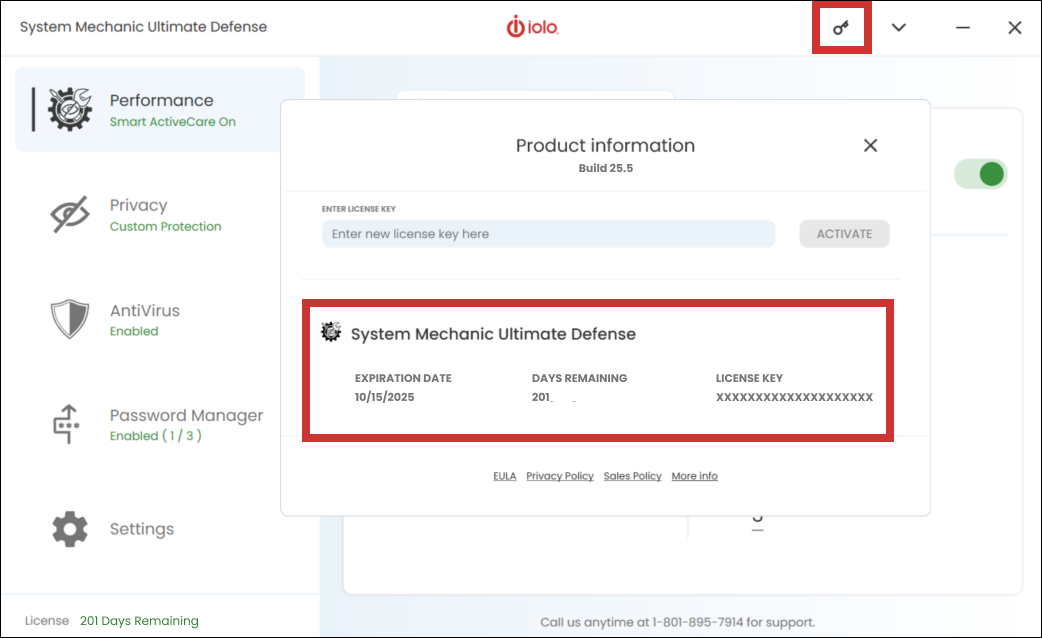
- Copy the license key. You will need this to set up your ByePass+ browser extension account.
- Proceed to STEP 2 | Install Browser Extension
STEP 1 | Locate License Key [BYEPASS+ Software]
Prerequisite: To use the ByePass+ browser extension, you need a System Mechanic Ultimate Defense (OR ByePass+ software) subscription and an activated license key.
- Open the ByePass+ application on your PC. Click the key icon in the upper right corner. The Product Information window displays your subscription status and license key.
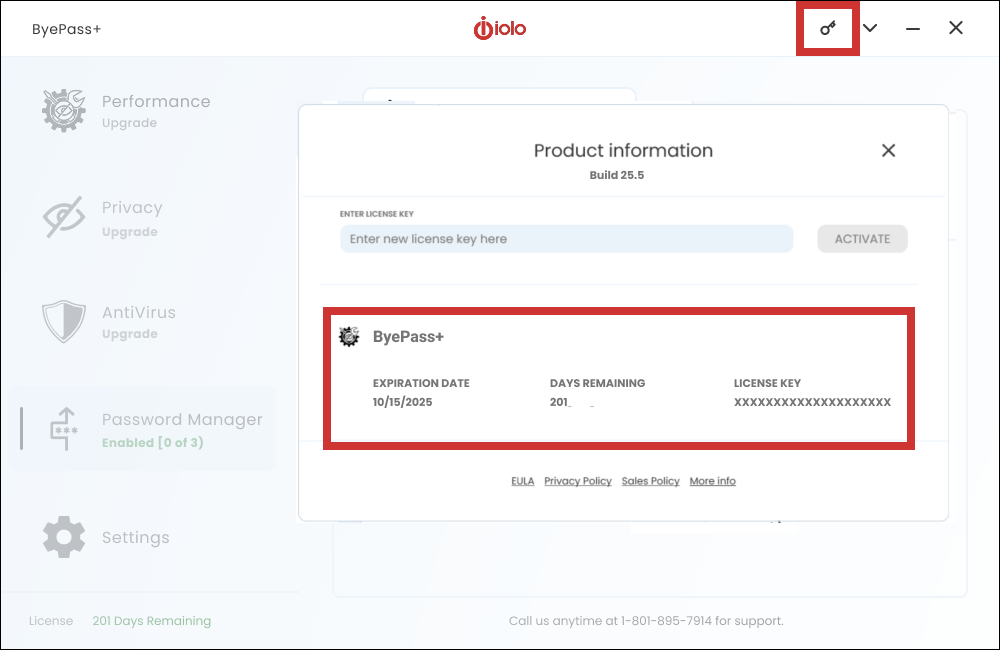
- Copy the license key. You will need this to set up your ByePass+ browser extension account.
- Proceed to STEP 2 | Install Browser Extension
STEP 2 | Install browser extension – GOOGLE CHROME
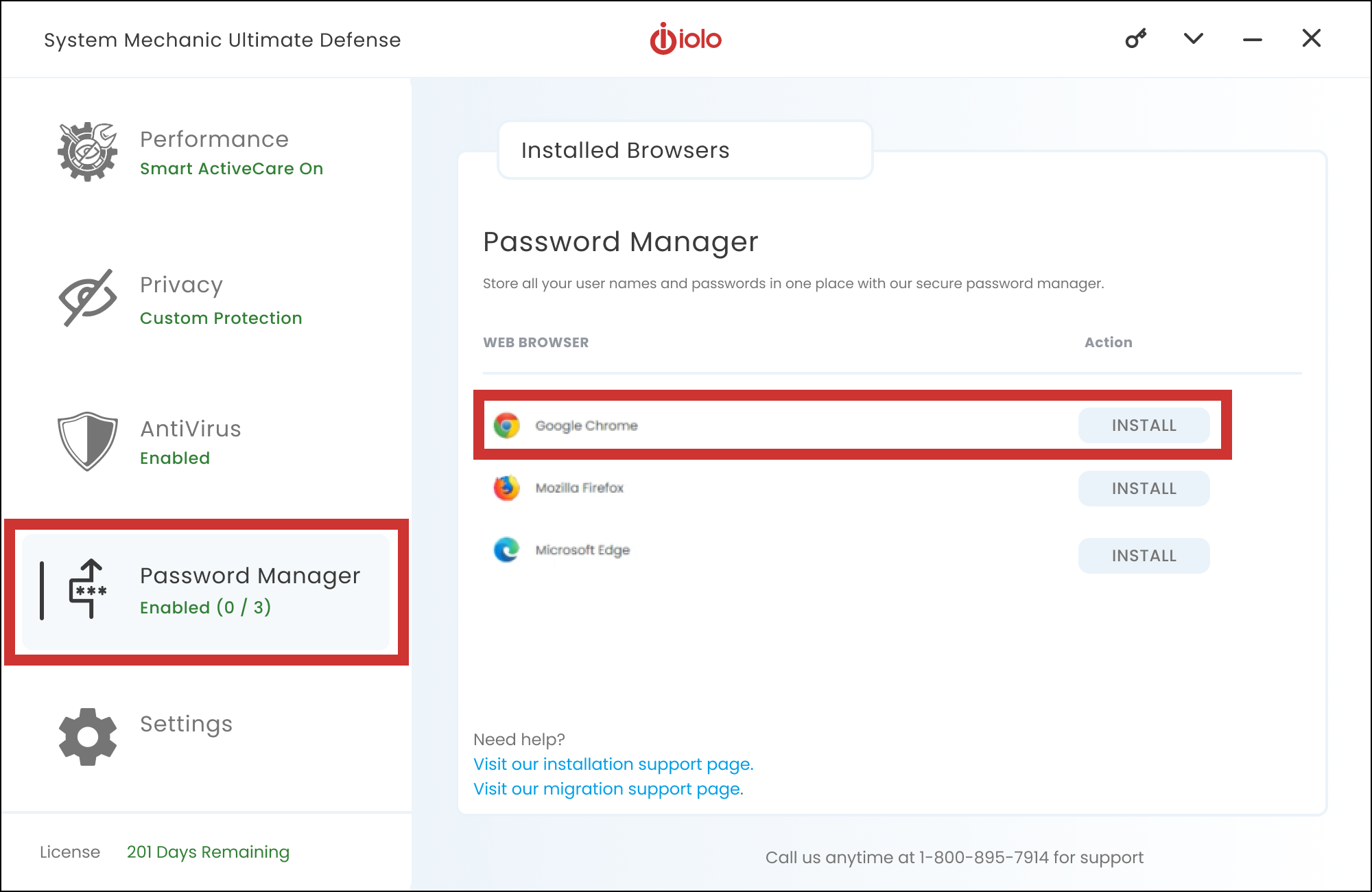
- Select Password Manager on the navigation menu in System Mechanic Ultimate Defense (OR ByePass+ software).
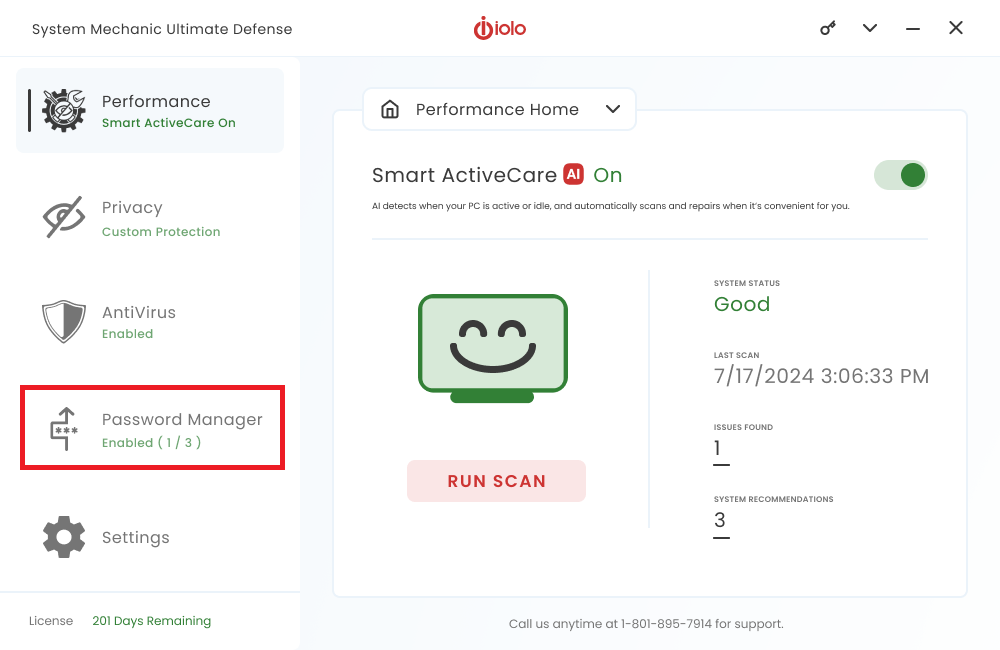
- Click Install for Google Chrome. (You will be directed to the ByePass+ browser extension in the Google Chrome Extension store.)
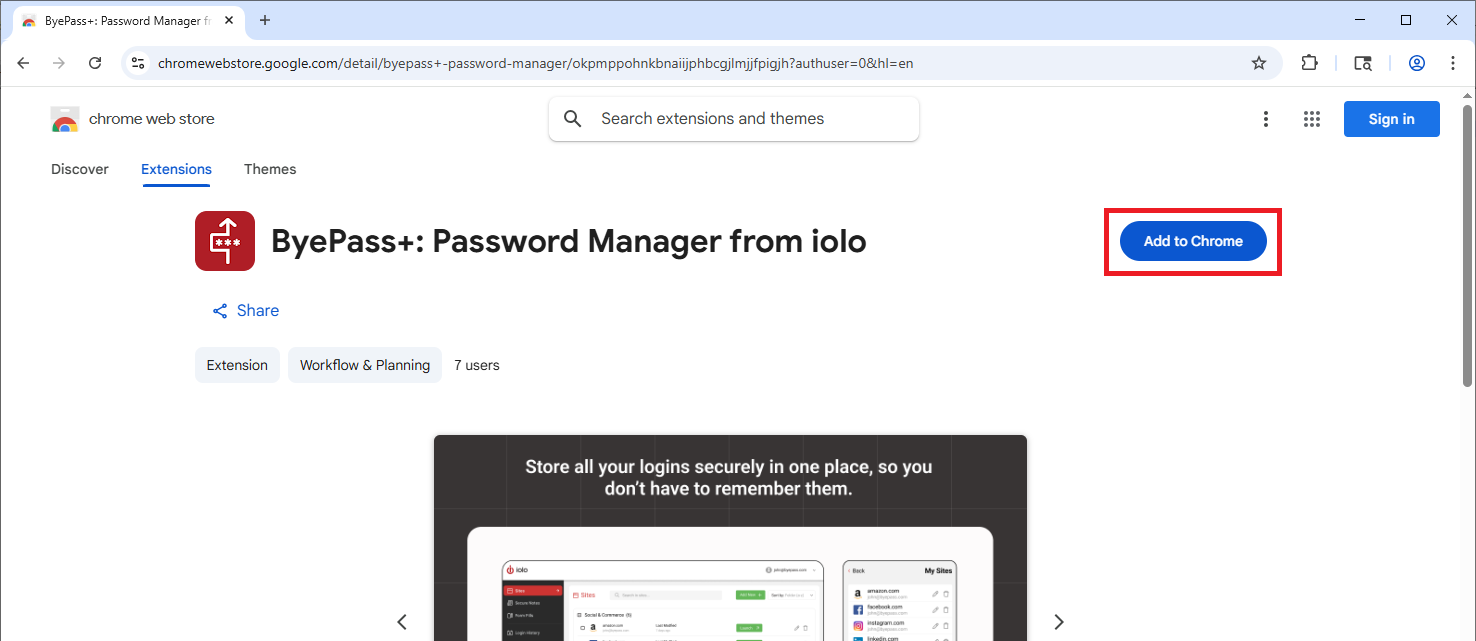
- Click Add to Chrome and follow the prompts to complete installation.
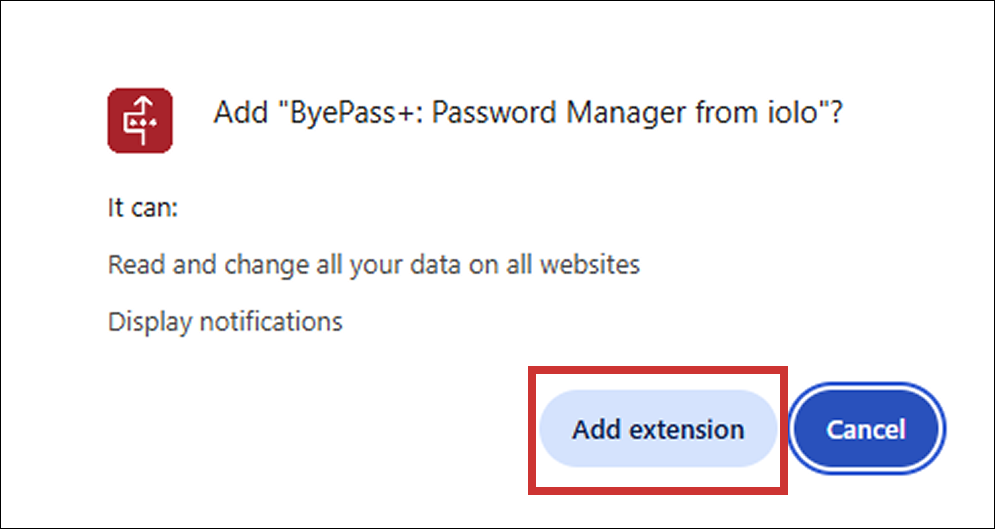
- Click Add extension to add ByePass+ to your Extension menu.
- Proceed to STEP 3 | Access ByePass+ Extension
STEP 2 | Install browser extension – MICROSOFT EDGE
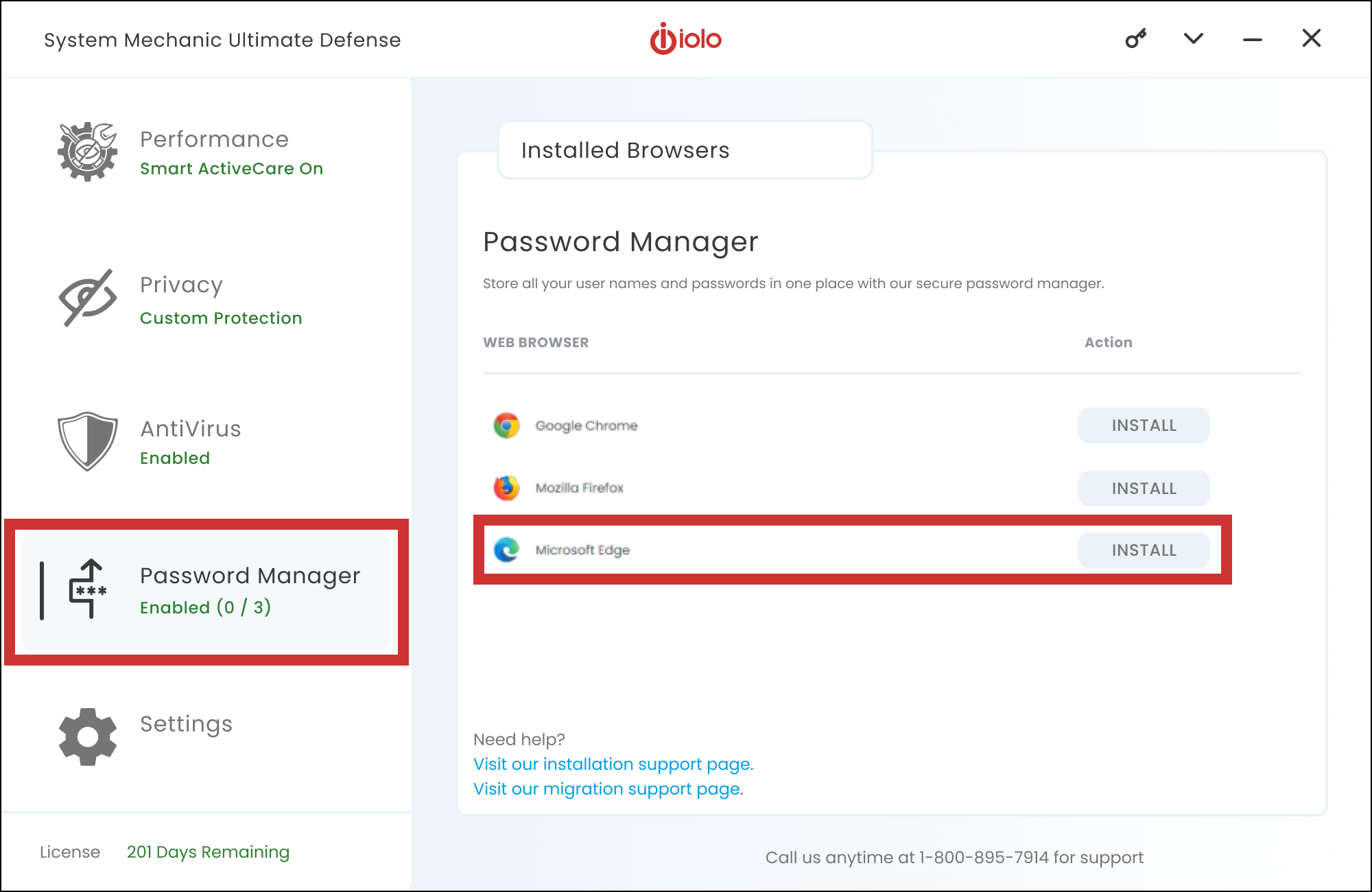
- Select Password Manager on the navigation menu in System Mechanic Ultimate Defense (OR ByePass+ software).
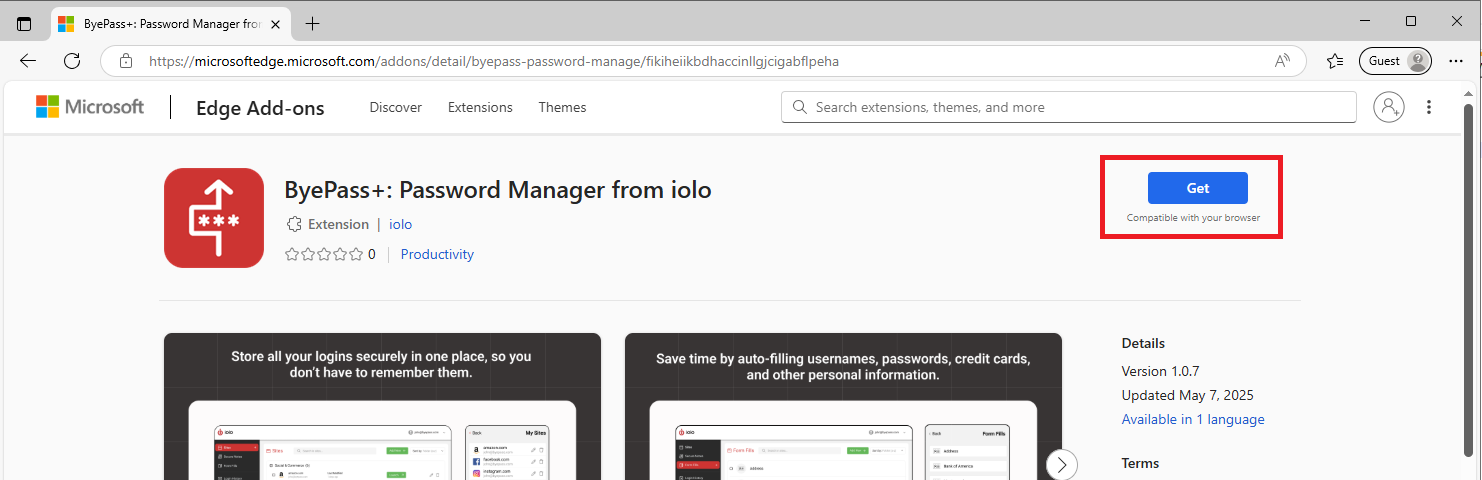
- Click Install for Microsoft Edge. (You will be directed to the ByePass+ browser extension in the Microsoft Edge Add-ons store.)
- Click Get to install the ByePass+ extension.
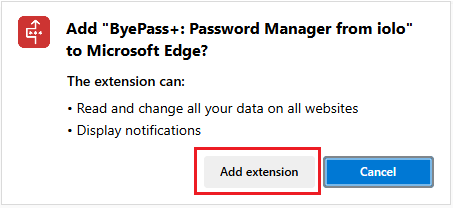
- Click Add extension to add ByePass+ to your browser.
- Proceed to STEP 3 | Access ByePass+ Extension
STEP 2 | Install browser extension – MOZILLA FIREFOX
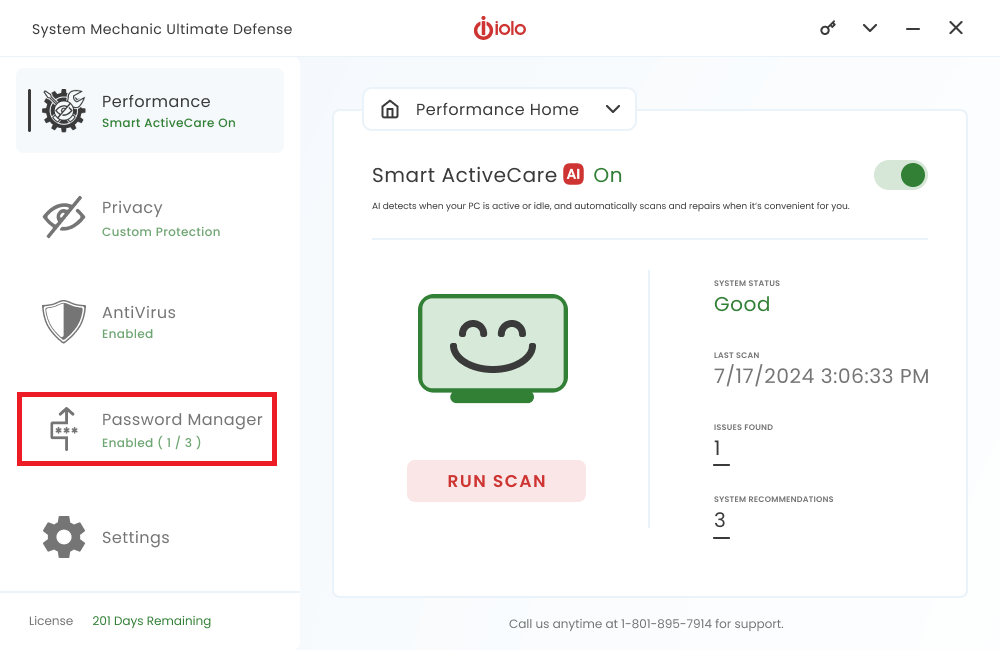
- Select Password Manager on the navigation menu in System Mechanic Ultimate Defense (or ByePass+ software).
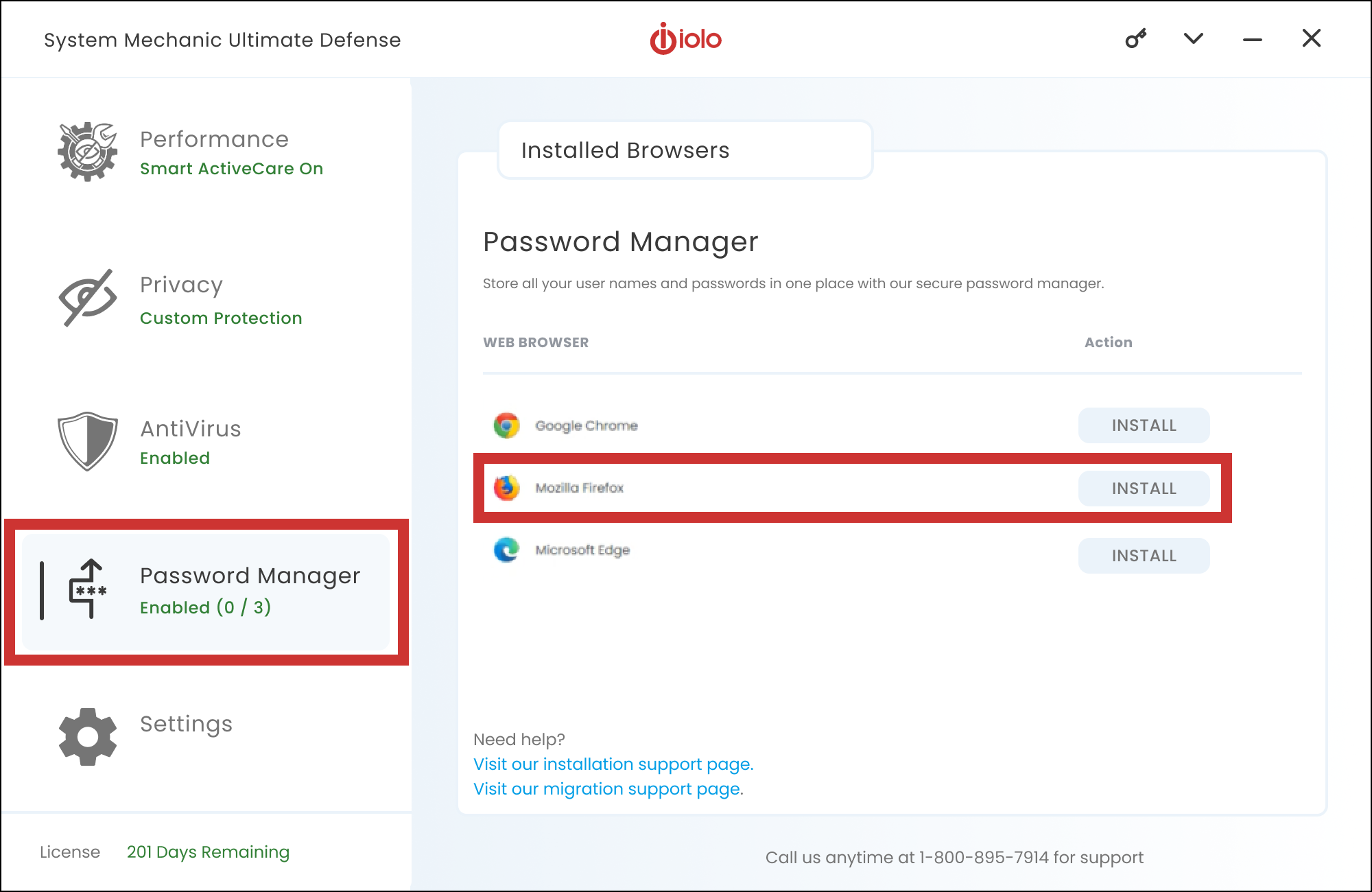
- Click Install for Mozilla Firefox.
- The ByePass+ Mozilla Firefox browser extension file will automatically download.
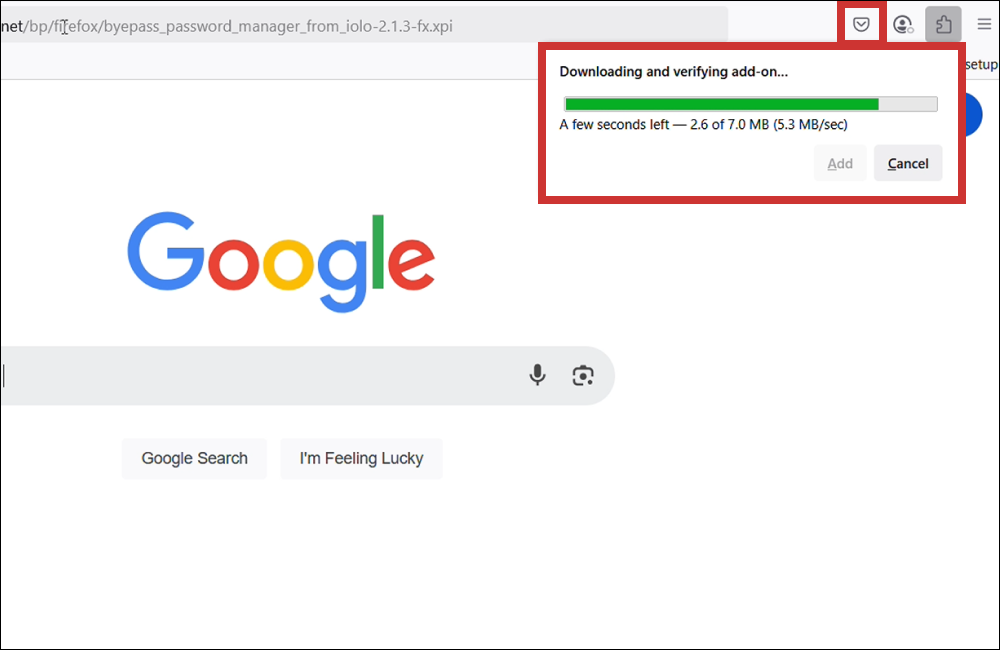
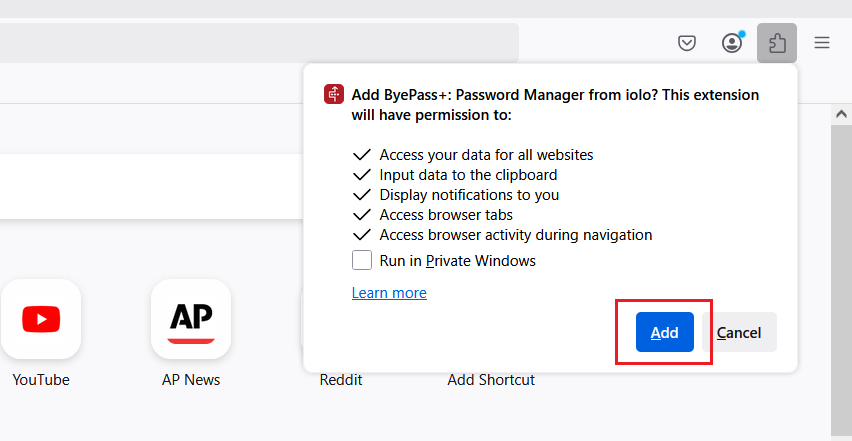
- Once the download is complete, click Add to install the browser extension. [Need screenshot of Firefox not Chrome.
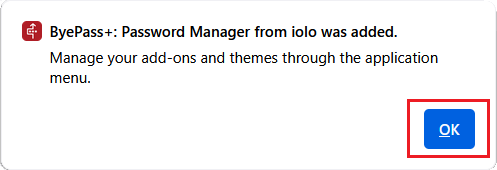
- Click OK after the extension is added.
- Proceed to STEP 3 | Access ByePass+ Extension
STEP 3 | Access ByePass+ Extension
- Once the ByePass+ browser extension is installed, click the Extensions icon (looks like a puzzle piece) in the upper-right corner of your browser.
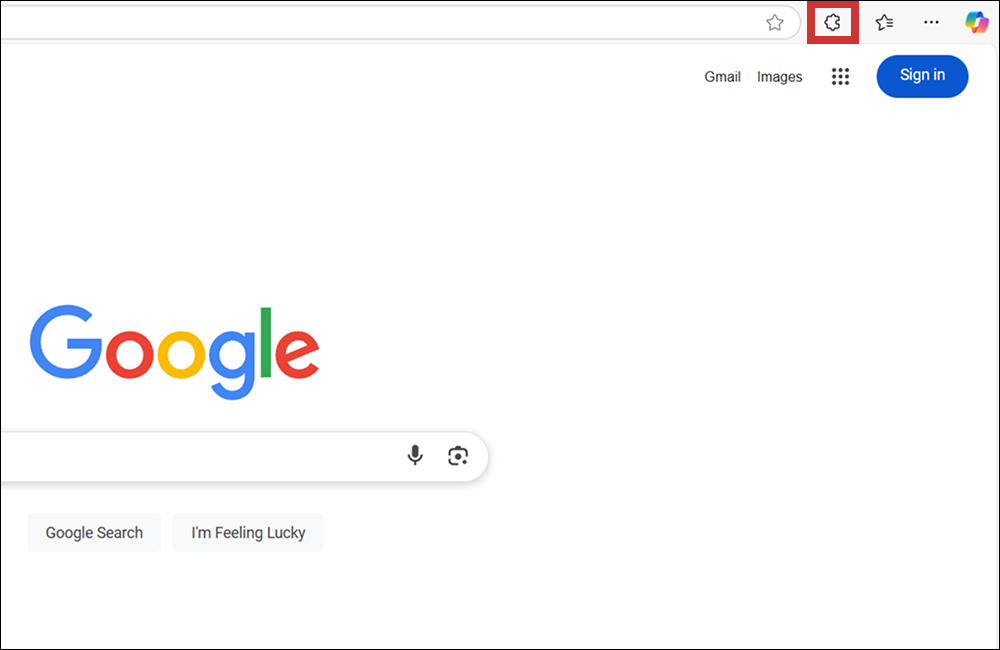
- Launch ByePass+ to get started.
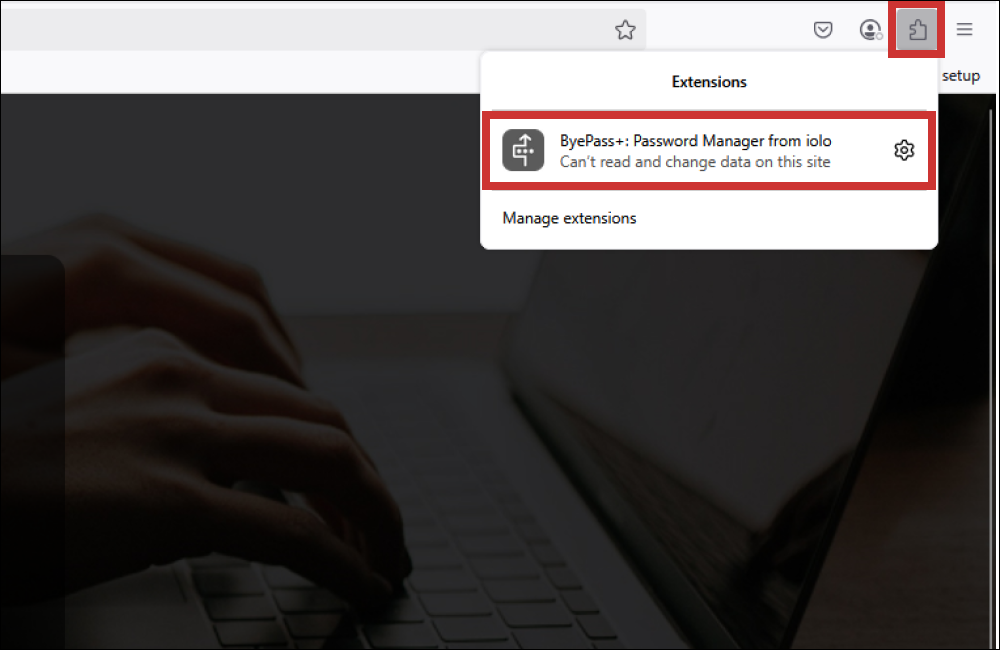
- To create a ByePass+ extension account, enter your email and License Key. Create a Master Password and Password Hint.
IMPORTANT: Your Master Password will be used to access all the data you store in ByePass+. Try not to forget your master password and ensure your hint is clear. Your hint is the only help available to recover your password.
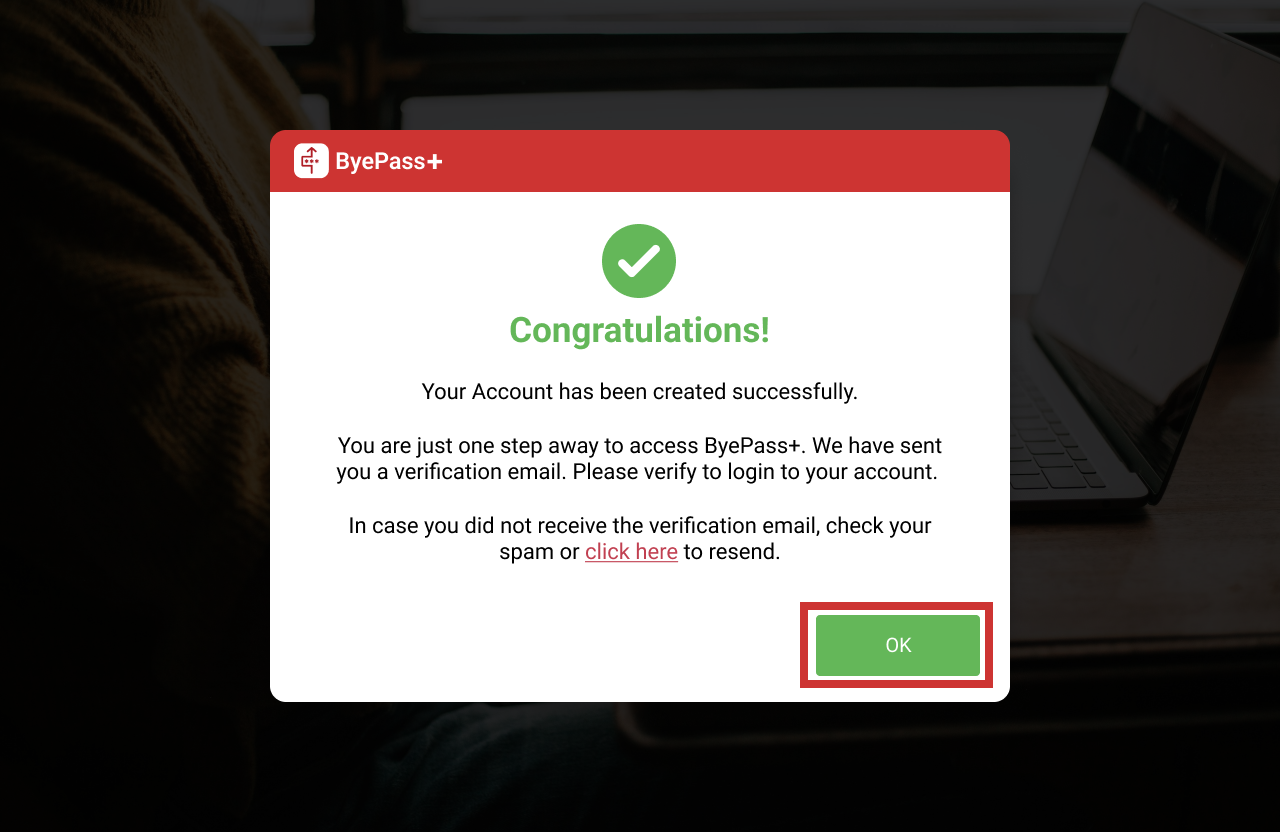
- Click OK once account has been successfully created.
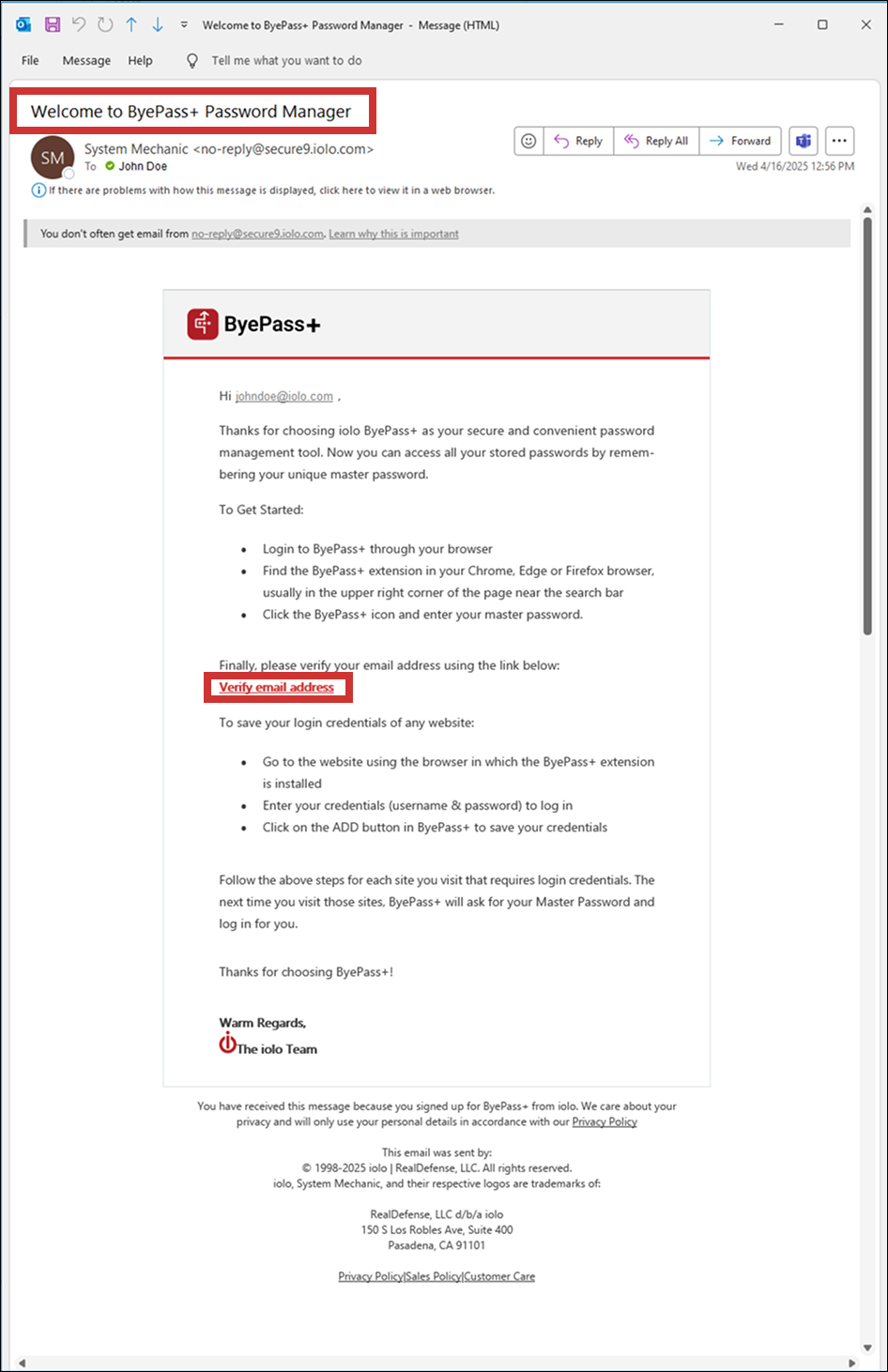
- Locate Welcome email from your inbox and click Verify email address.
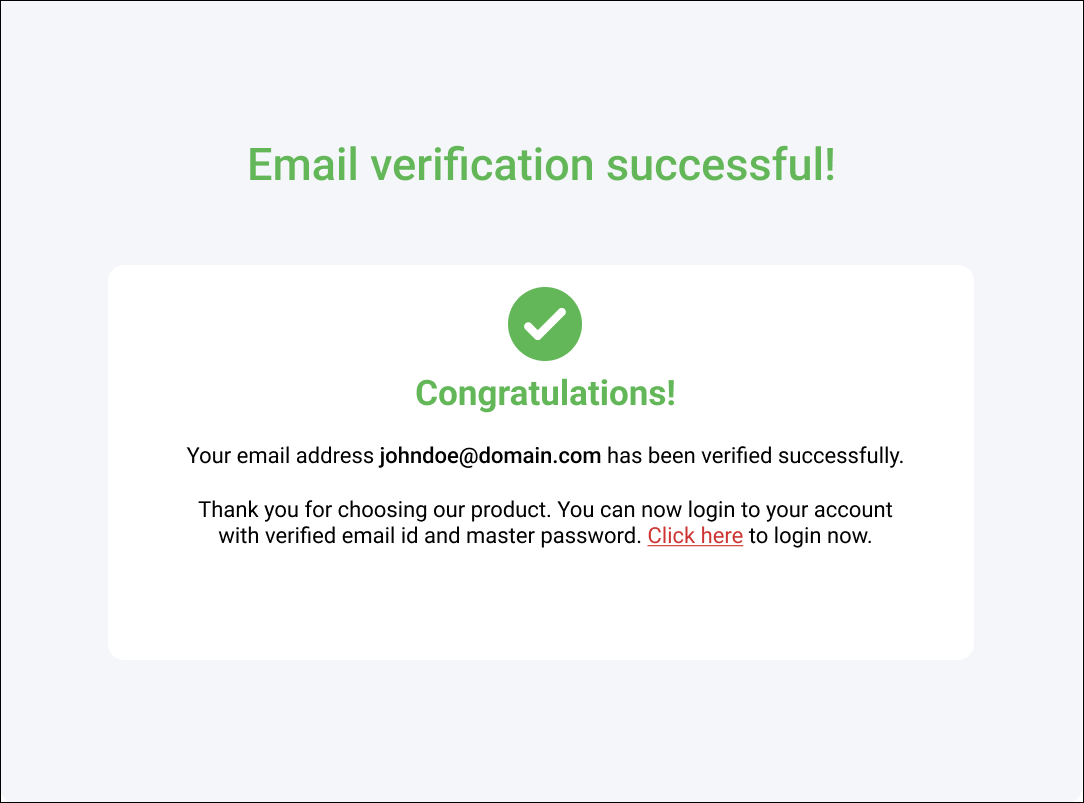
- Upon verification, you will receive a notification.Select Click here to login.
- Login to ByePass+.
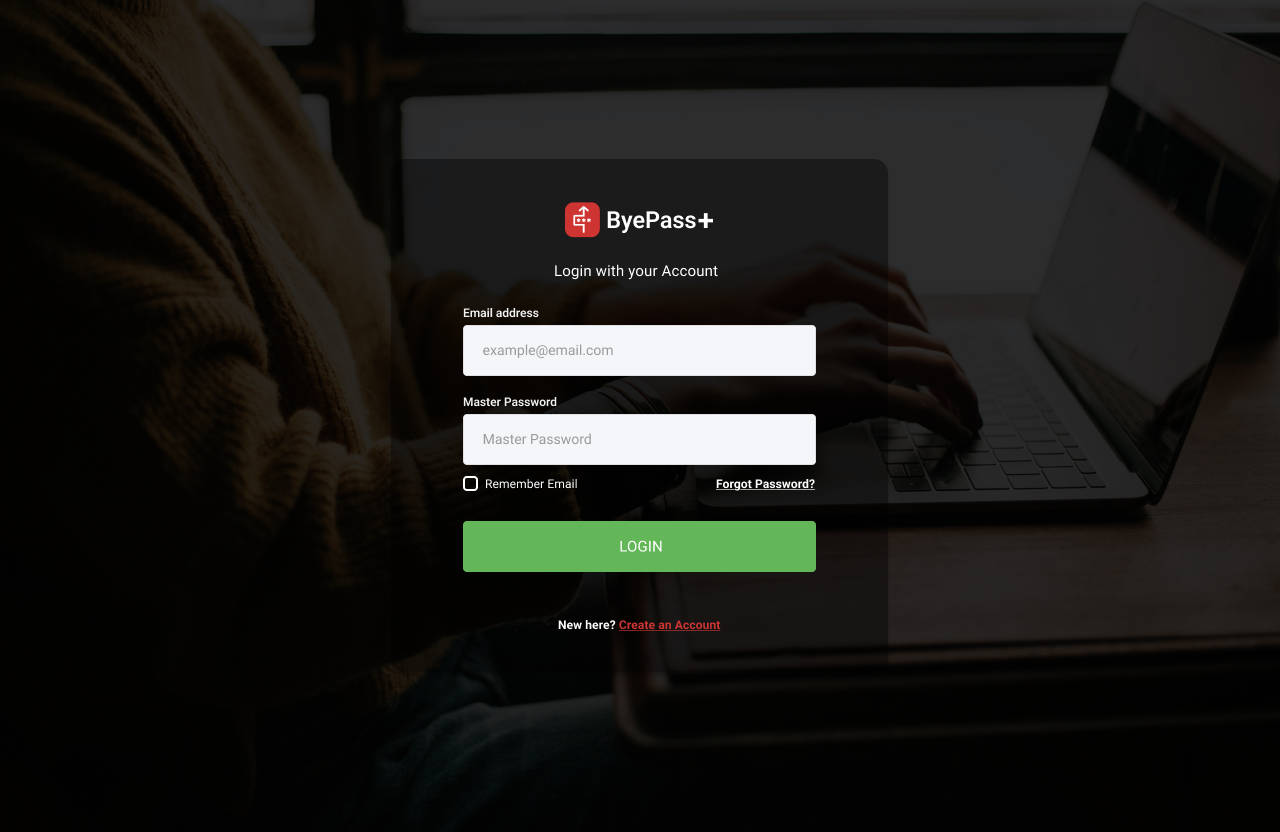
Congratulations! You can now start using ByePass+. Are you migrating your ByePass account to ByePass+? Keep going with the migration instructions, here.