

Product will not update properly or launch after installation
We have found that Windows Update can sometimes corrupt Windows Management Instrumentation (WMI), via Windows .Net Framework, as well as a WMI namespace getting unregistered during and needing to be reregistered.
STEP 1: Verify Windows WMI Related
The best way to start out verifying if this is WMI related is by simply going to the Windows Search, or command-line prompt, typing msinfo32, and clicking Enter. When the application window appears, if the window pane shows that it could not load, it is in fact a Windows (WMI) issue.
STEP 2: Verify Windows WMI Service Status
Navigate to Windows Services and check to make sure the Windows Management and Instrumentation Service is started.
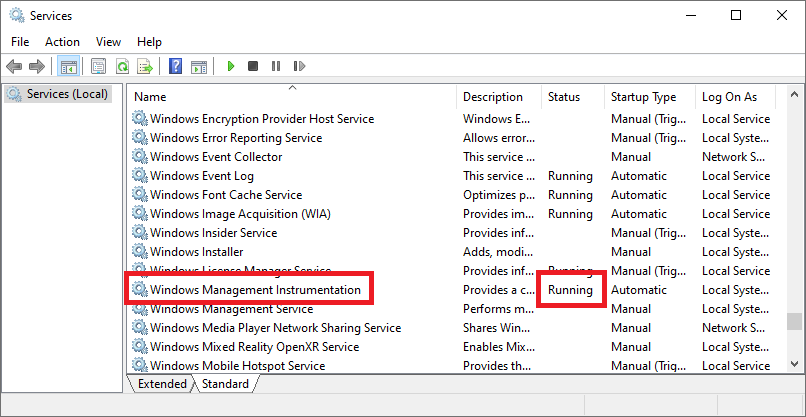
If it is not, try to start it. If the service cannot start, none of the troubleshooting in this article will help and the customer will inevitably need to run a repair of Windows. If it is started proceed to step 2.
STEP 3: Repository Status and Repair
Check the consistency of the Windows repository and perform a salvage or repair if necessary.
Note: These commands (with quotes if shown) must be run in the command console as Administrator
verify respository
"C:\windows\system32\wbem\winmgmt.exe" /verifyrepository
If inconsistent run the following commands verifying each time:
rebuild repository "C:\windows\system32\wbem\winmgmt.exe" /salvagerepository
reset repository
"C:\windows\system32\wbem\winmgmt.exe" /resetrepository
STEP 4: Verify the root\default WMI namespace
Navigate to the Windows Control Panel > Administrative Tools > Computer Management > Services and Applications. Right click on WMI Control > Properties > Advanced tab.
Normally a default namespace will be shown. If not, register the namespace with the following command:
"C:\windows\system32\wbem\mofcomp.exe” CimWin32.mof
If none of the above works, run a repair with a Windows install disk. Operating System images are normally available on Microsoft’s website.