
How to Migrate Password Data from ByePass to ByePass+
This page provides instructions for upgrading your existing ByePass Password Manager data to ByePass+. We recommend performing this process at your earliest convenience to ensure continued service.
Moving from ByePass to ByePass+ is a four-step process:
Step 1 | Export your data from ByePass
Step 2 | Ensure you are on the latest software version
Step 3 | Install ByePass+ browser extension and create your account
Step 4 | Import your data into ByePass+
Step 1 | Export your data from ByePass
- Open the ByePass extension from your browser.
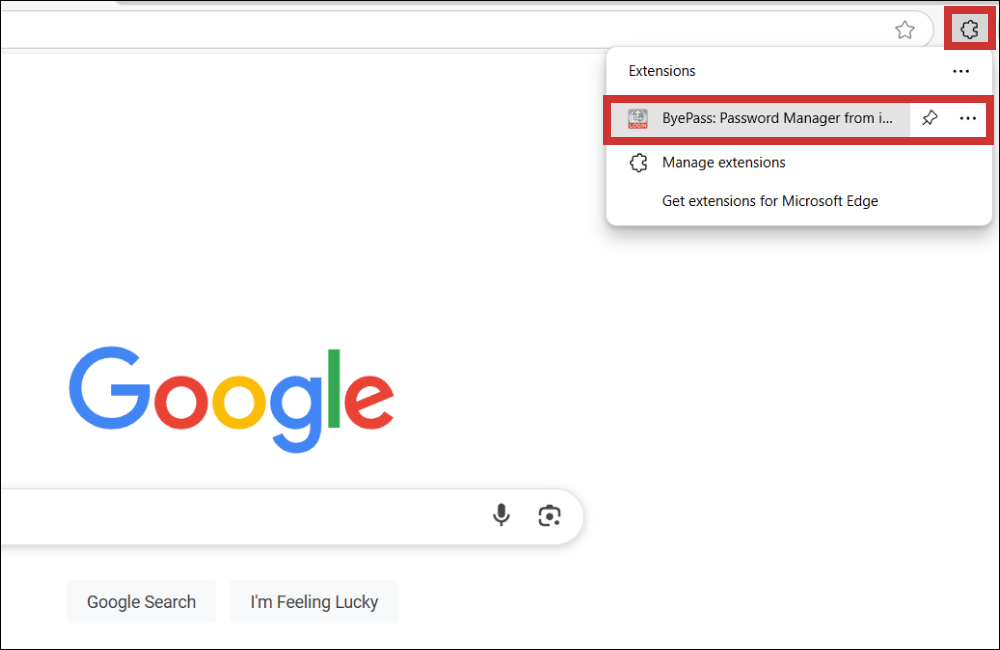
- Login to ByePass extension using your Master Password.
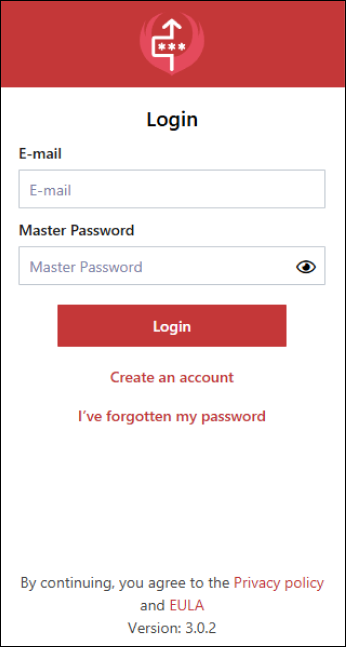
- Click the ByePass menu (3 horizontal bars in top left).

- Select Settings.
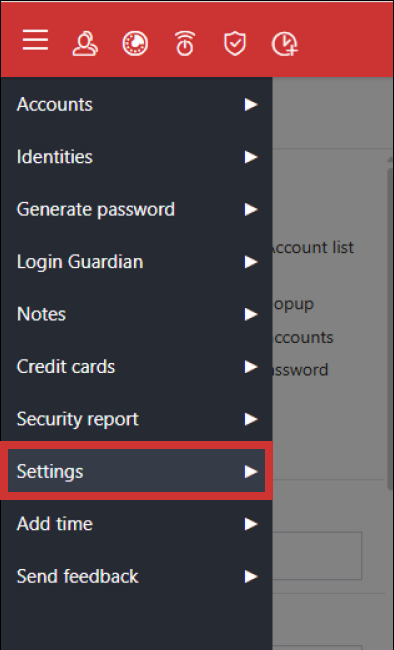
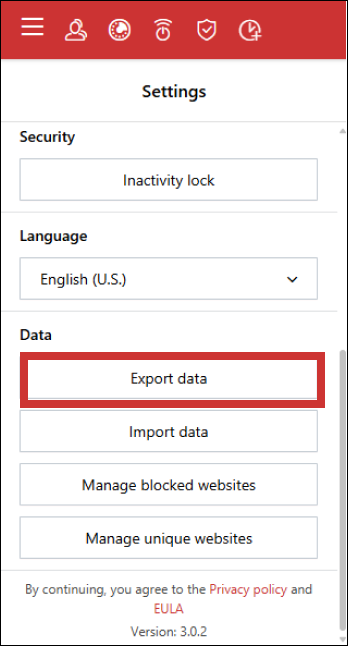
- Scroll down to the Data section and click Export Data.
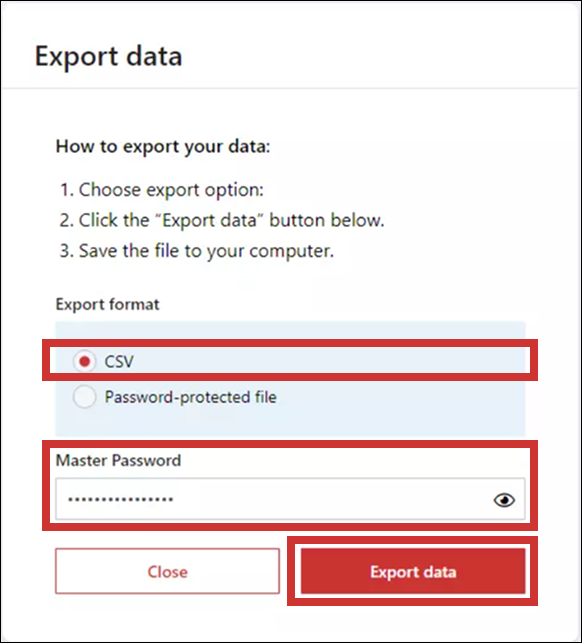
- Select Export Format CSV, enter Master Password, click Export Data.
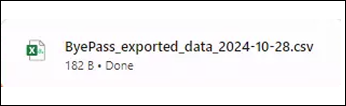
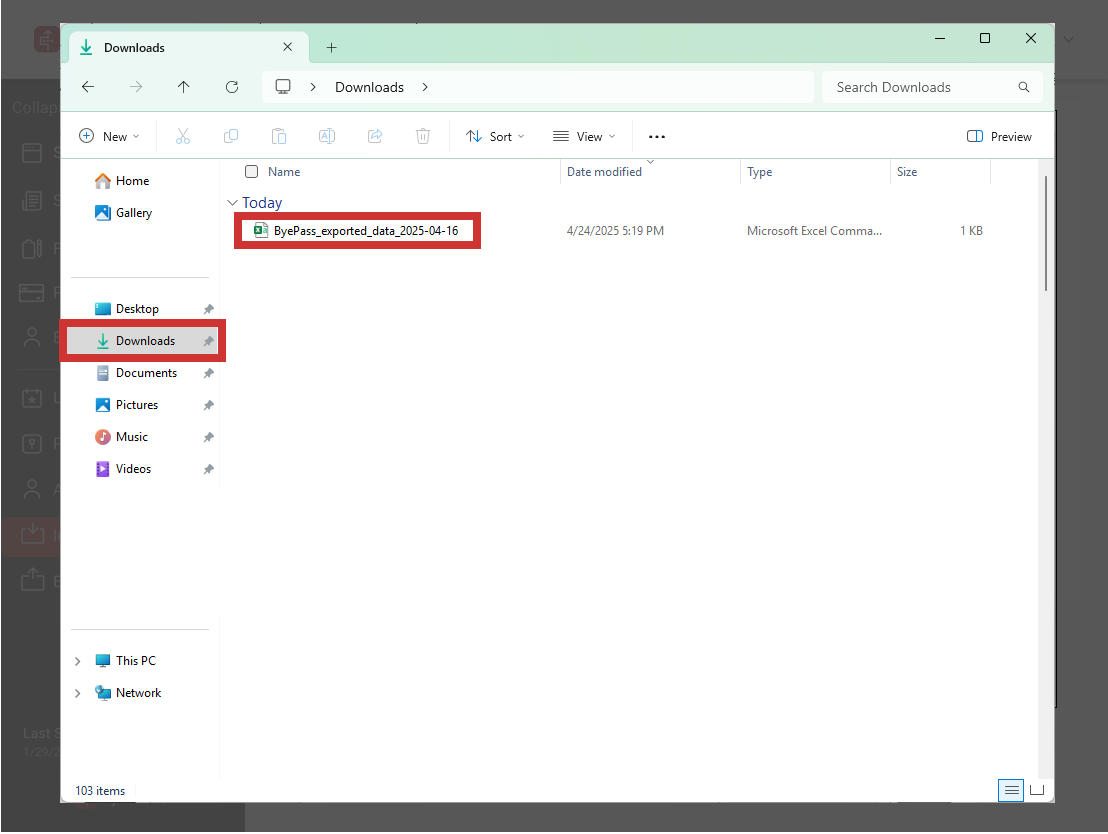
- Your exported data file will be automatically saved to your Downloads folder.
Step 2 | Ensure you are on the latest software version
Prerequisite: To access the ByePass+ browser extensions via System Mechanic Ultimate Defense OR ByePass+ software, you must be on software version 25.5 or higher.
- Open the System Mechanic Ultimate Defense OR ByePass+ application on your PC.
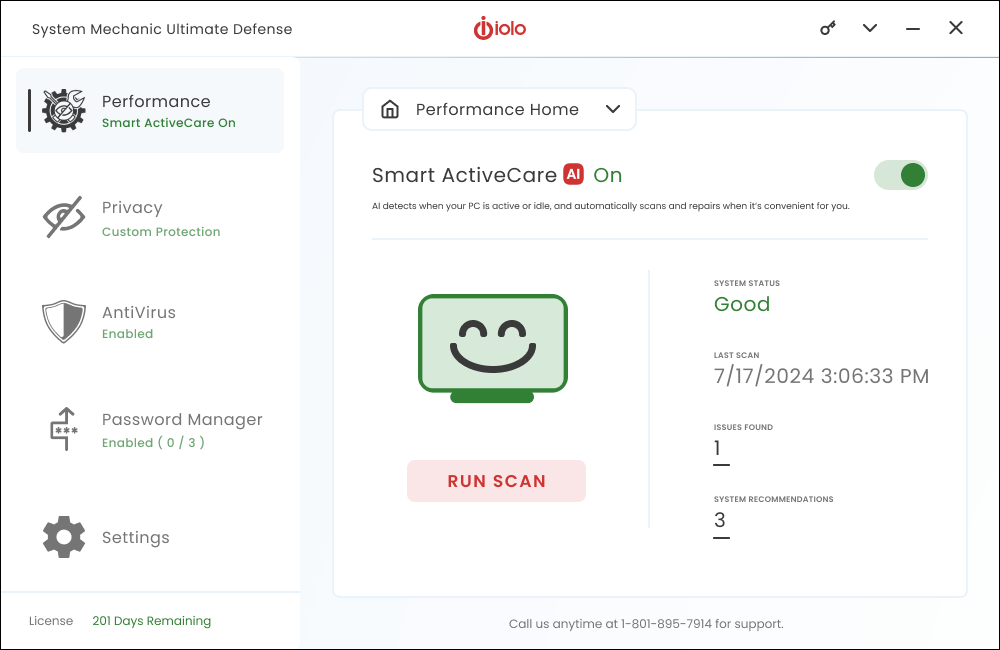
- Click the key icon in the upper right corner. The Product Information window displays the current software build.
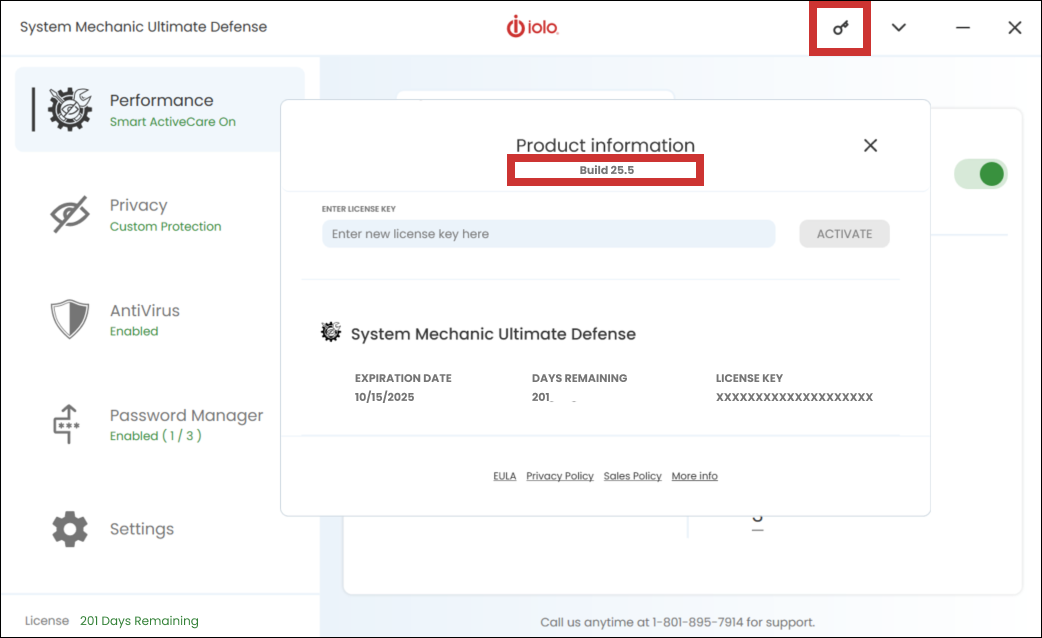
- If the current version is 25.5 or higher, proceed to the following steps:
- Step 3 | Install ByePass+ browser extension and create your account
- Step 4 | Import your data into ByePass+
- To update to the latest software version, click here.
Step 3 | Install ByePass+ browser extension and create your account
- Click here and follow our installation instructions.
Step 4 | Import your data into ByePass+
- Login to ByePass+ from your browser.

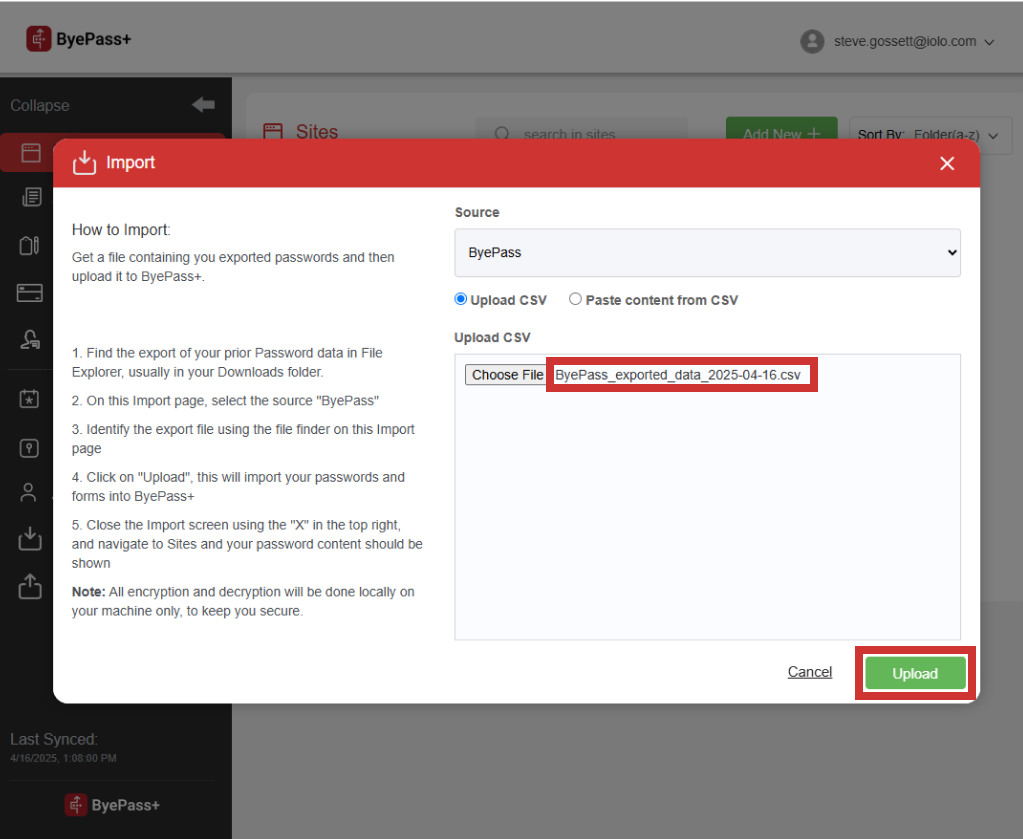
- Click Import Data.
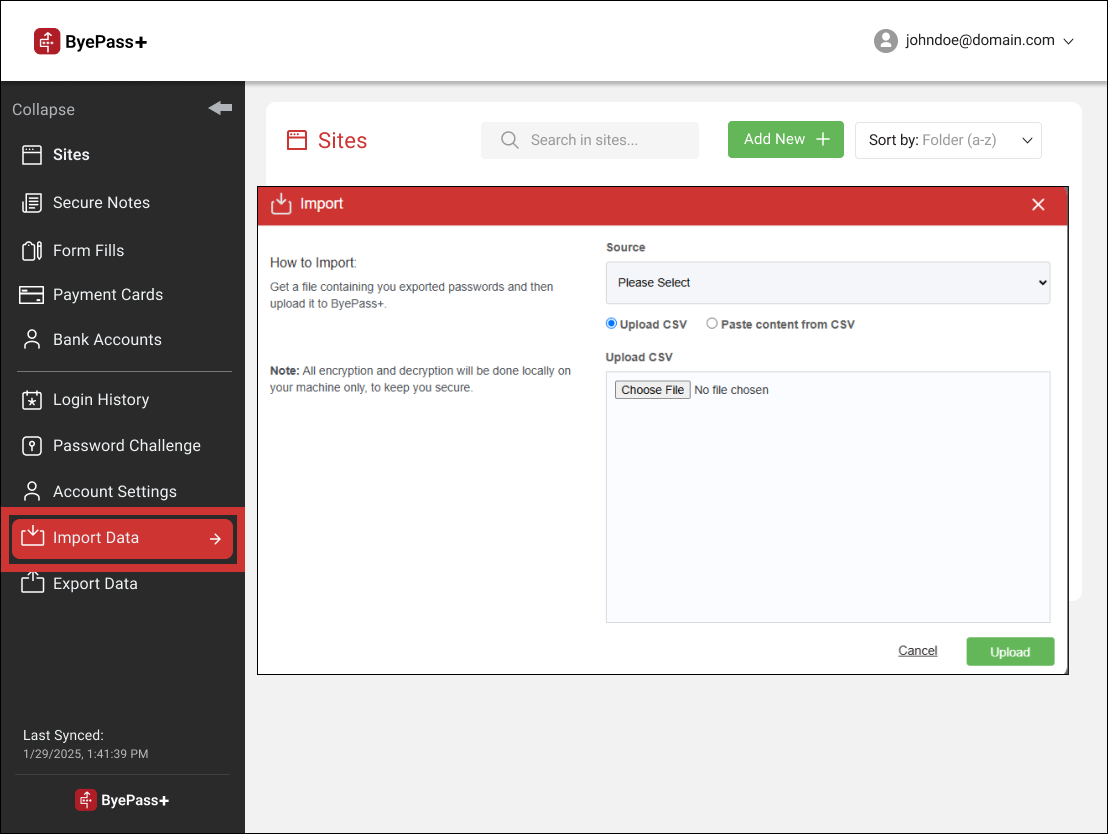
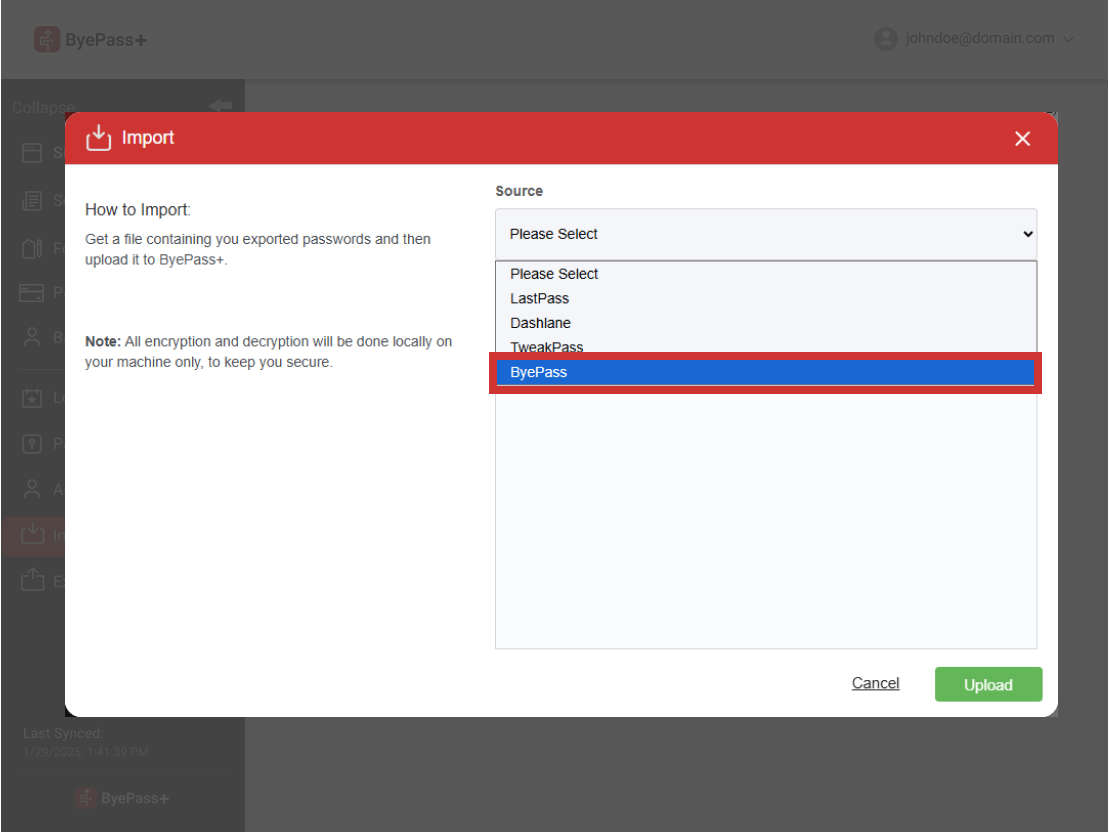
- Select ByePass from the Source drop down menu.
- Click Choose File.
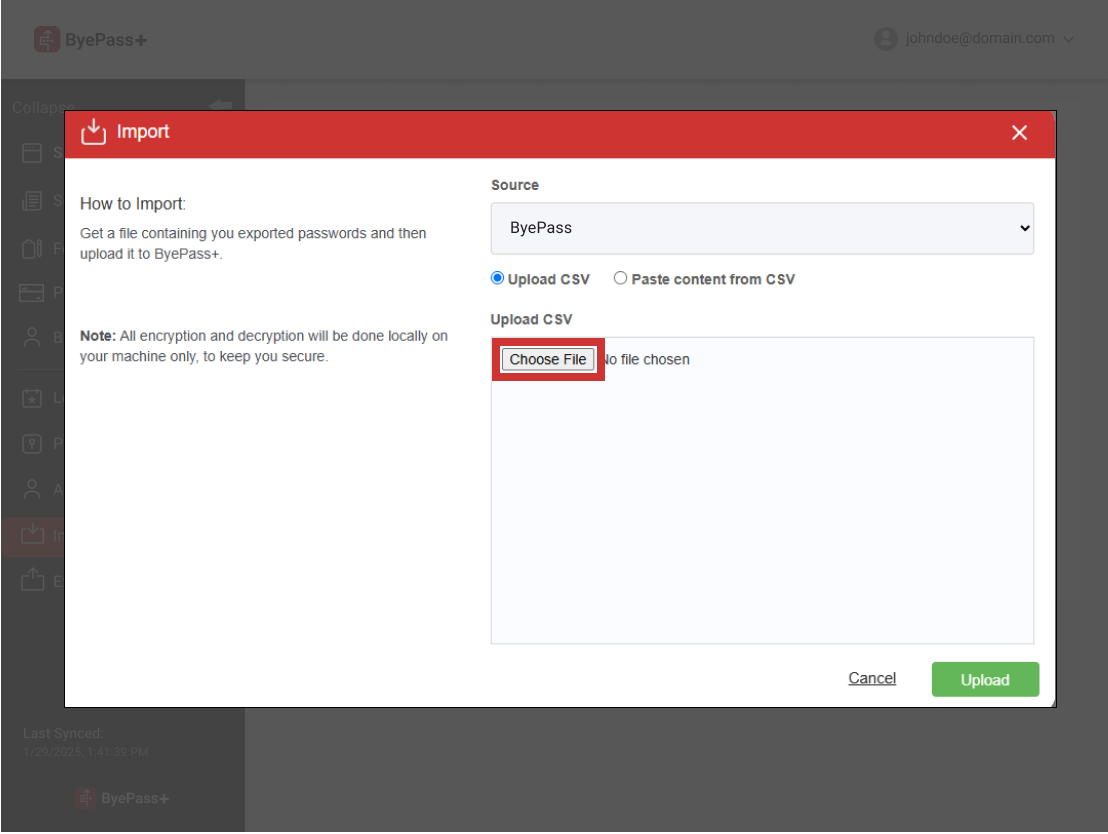
- Navigate to your exported ByePass data file downloaded in Step 1.
- Click Upload.
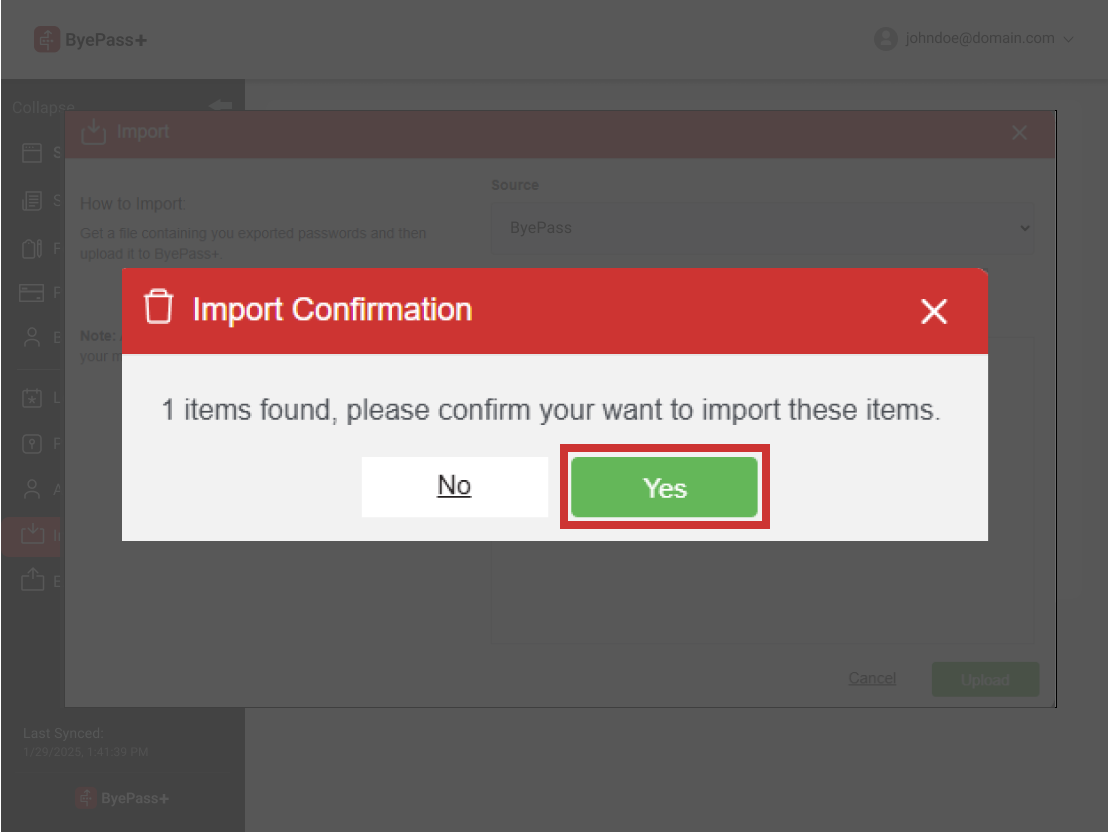
- Click Yes to confirm import.
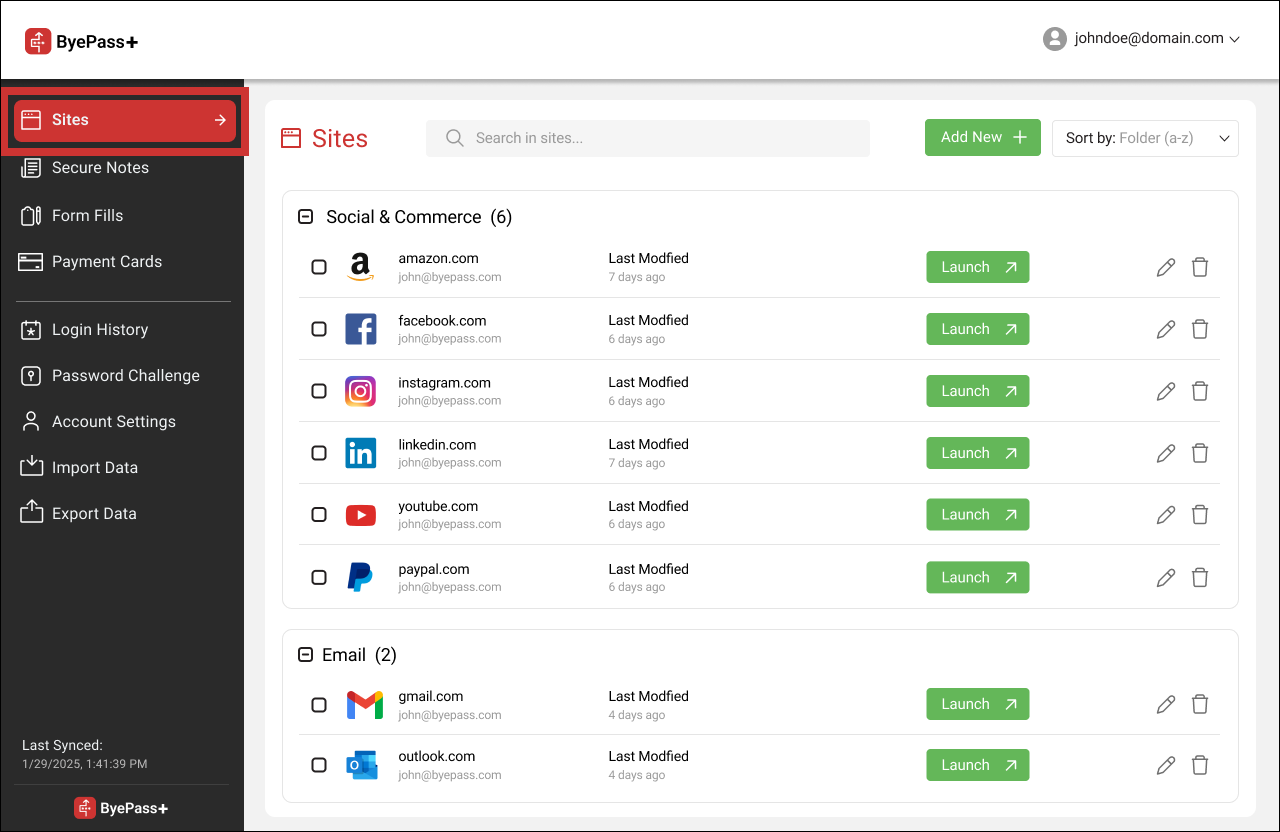
- Click Sites to see your imported data.